Account security, two-factor and passwords
Your Trackify account may hold payslips, so it is worth protecting. This page covers two-factor authentication, passwords, Google sign-in and the protections on the sign-in page.
For: MemberManagerOwnerAdmin
Turn on two-factor authentication
- Open the avatar menu → Account security.
- Under Two-factor authentication, click Set up two-factor.
- Add the secret shown to your authenticator app (type it in; there is no QR code). Your app must support SHA-256 codes — most current apps do.
- Store the 10 backup codes somewhere safe; each works once.
- Enter the 6-digit code from the app and click Verify & enable.
From then on, signing in asks for a 6-digit code or a backup code. Accounts with two-factor turned on cannot sign in to the desktop app yet; use the web app.
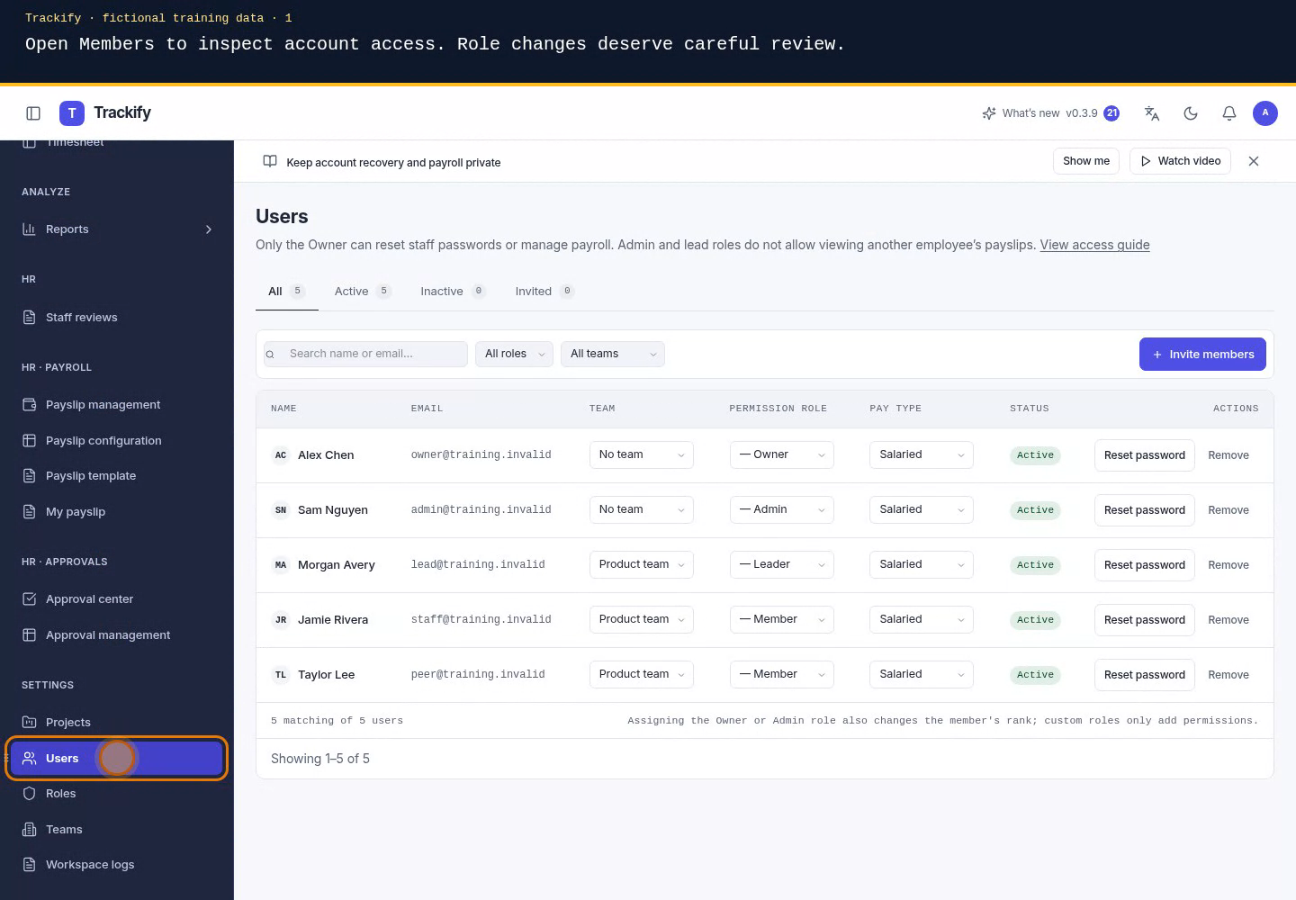
Change or recover your password
- Change password is in the avatar menu.
- Forgot it? Self-service reset by email is not available yet. Ask your workspace Owner to Reset password on the Users page: you receive a temporary password by email and must change it when you next sign in.
- If you are the Owner and cannot sign in, write to trackify@uniqtech.dev from your account email.
Google sign-in
Under Account security, Link with Google connects your Google account so you can use Continue with Google on the login page; Unlink Google removes it. One email address is one Trackify account. If the site has not enabled Google yet, the button says it is not configured.
Sign-in protection
- Sign-up and Google sign-in may show a quick security check. Password sign-in shows it after several failed attempts from your network.
- Too many attempts in a short time pause sign-in for a few minutes: “Too many attempts from your network. Please try again in N minute(s).”
Try it with your team
Trackify is free for up to 5 users, with no time limit and no card required.