Projects, clients, tasks and tags
Projects are the backbone of reporting: every task belongs to one, and every report can group by project, client, task or tag. This page is for the Admins and project managers who set them up.
For: ManagerAdmin
Create a project
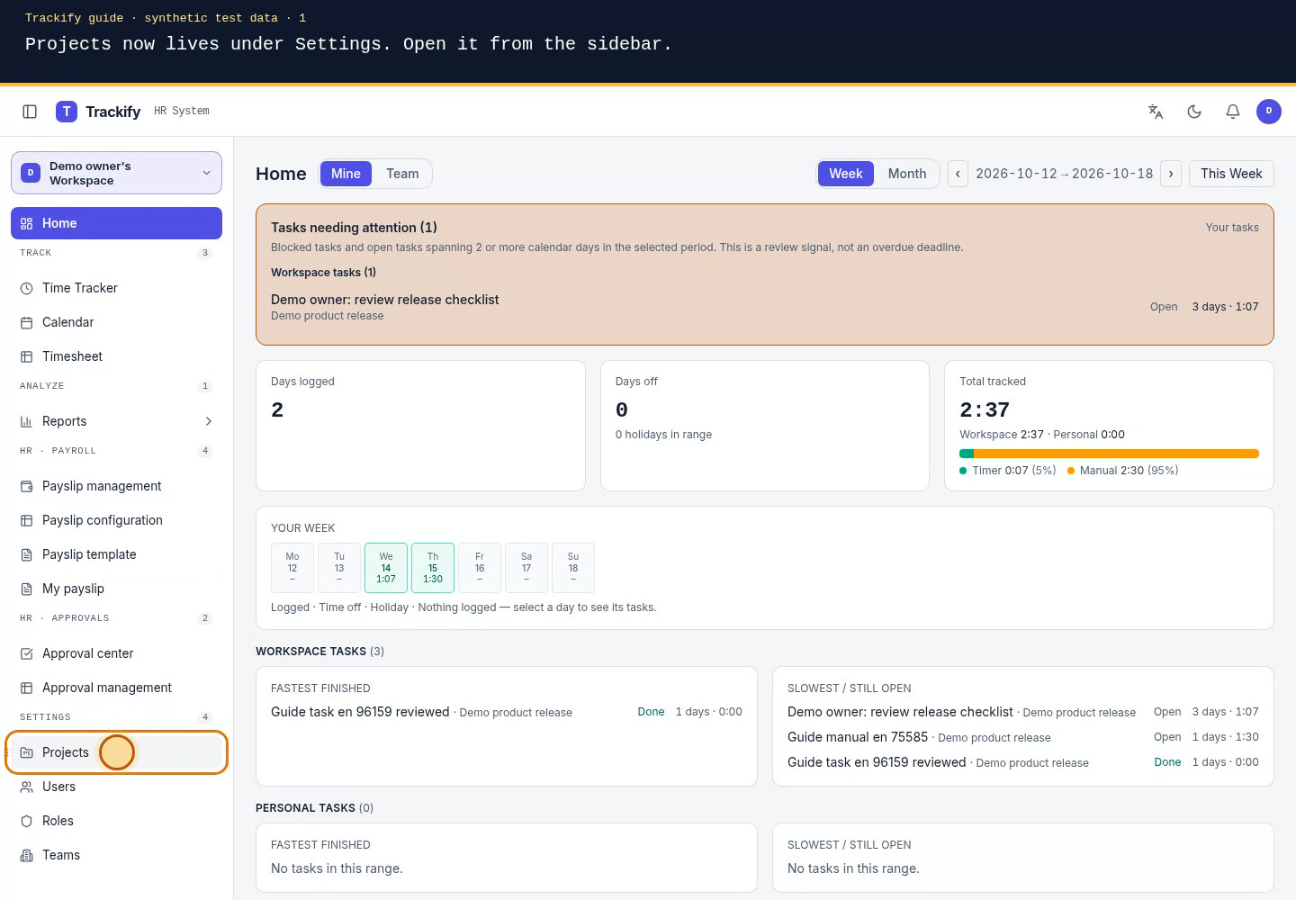
- Open Settings → Projects and click Create. (By default only the Owner and Admins can create projects and clients; they can widen this in Workspace management.)
- Give it a name, choose a client if you bill one, and decide whether its time is Billable by default.
- Click a project row to edit it. The editor has General, Access, Tasks and Status tabs.
Estimates, budgets and status
- Estimate type — enter a manual estimate, or choose task-based to add up the ETAs of the project’s tasks.
- Estimate / budget (hours) and Fee / budget — the targets the Status tab measures against.
- A budget can reset weekly, monthly or yearly for retainers, and you can exclude non-billable time from the estimate.
- Status shows tracked time, progress and budget used.
Access, private projects and project managers
- Public projects are available to everyone in the workspace.
- Private projects are visible only to the people and teams added on the Access tab. Making a new project private is a Paid feature; existing private projects stay private if you move back to Free.
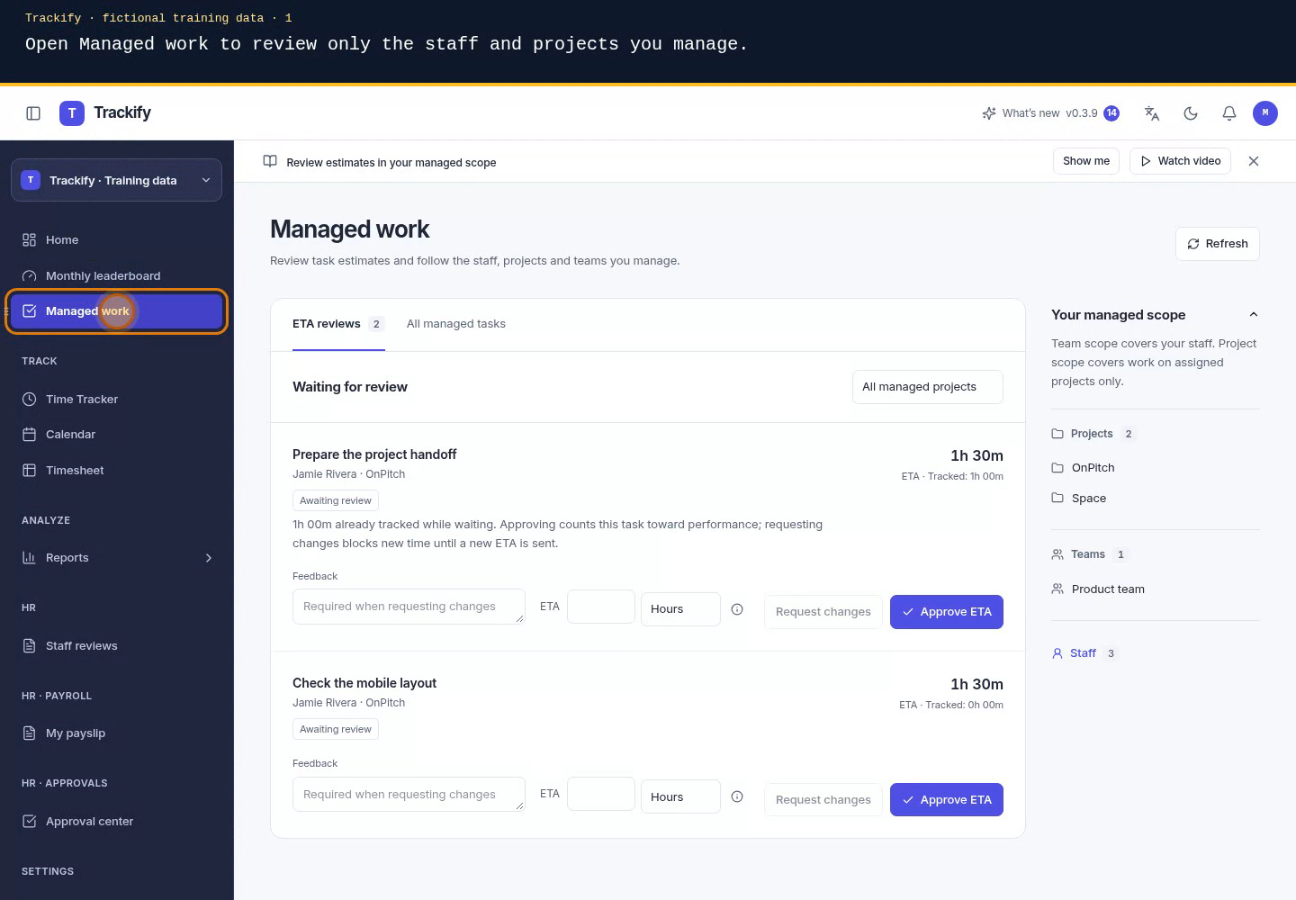
- Project managers see time on the projects they manage and can review ETAs there. Only the Owner or an Admin can make someone a manager (Paid). Owners and Admins can also use Assign project leads on the Managed work page.
Tasks and ETAs
Tasks are created by the people doing the work, from Time Tracker, with an ETA. One task name per person per project: planning “Write report” again tomorrow adds another day to the same task, so the time and the estimate stay together. A task’s billable setting is inherited by its entries.
On shared projects an ETA is required, and leads review it on Managed work — approve it, approve it at a lower value, or request changes with feedback. Nobody can approve their own ETA. See Home & leaderboard.
Try it with your team
Trackify is free for up to 5 users, with no time limit and no card required.