Time tracker, timesheets and calendar
Time Tracker is where most of the day happens: plan the tasks you intend to do, estimate each one, record time against them and close the day. This page covers the tracker, manual time, the weekly timesheet, the calendar and the safety features that stop a forgotten timer from inflating your hours.
For: MemberManager
Plan your day (the Tasks band)
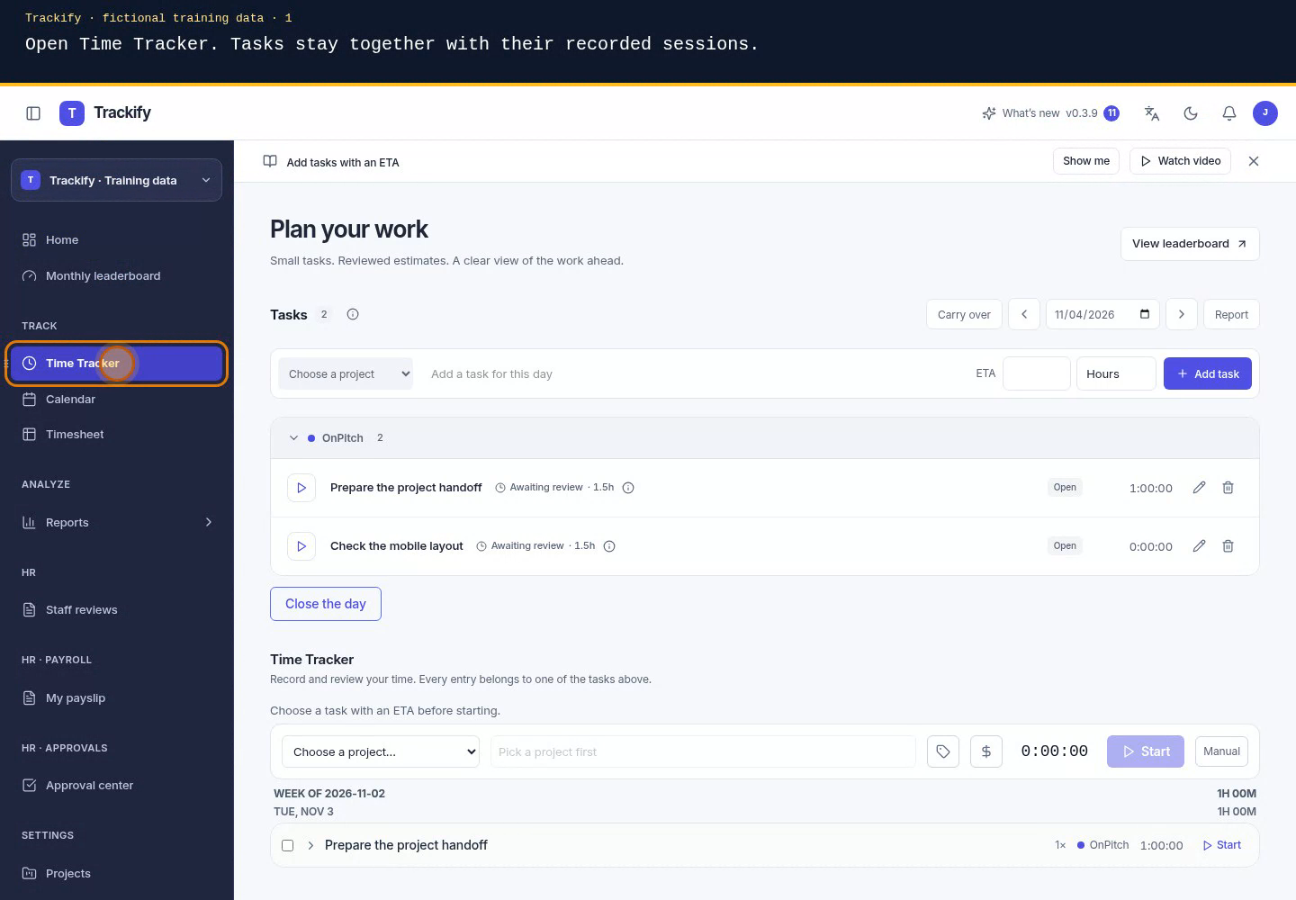
The top half of Time Tracker is your plan for the selected date. Tasks are personal: you see and track only your own, even if you are the Owner. Managers see everyone’s plans in the Daily Tasks report instead.
- Choose a project, type a task name and enter an ETA in hours or minutes. ETAs must be more than zero and under 8 hours — split bigger work into smaller tasks.
- Click Add task. Typing a name you already used on that project re-uses the same task instead of creating a duplicate, so its history stays in one place.
- Use the arrows or the date picker to plan another day. Edit task and Remove from day are on each row.
- Click Close the day when you finish. For each task choose Done, Open or Blocked.
- Next morning Trackify offers yesterday’s unfinished tasks: Carry forward or Not now.
Start and stop the timer
- In the Time Tracker band pick a project, then a task (type to search; Create makes a new task with an ETA).
- Optionally add tags and set billable with the $ button.
- Click Start. The clock runs in the page title and on the tracker.
- Started late? Click the running clock to edit the start time — elapsed time recalculates.
- Click Stop. The entry appears in the list below, grouped by day and then by task.
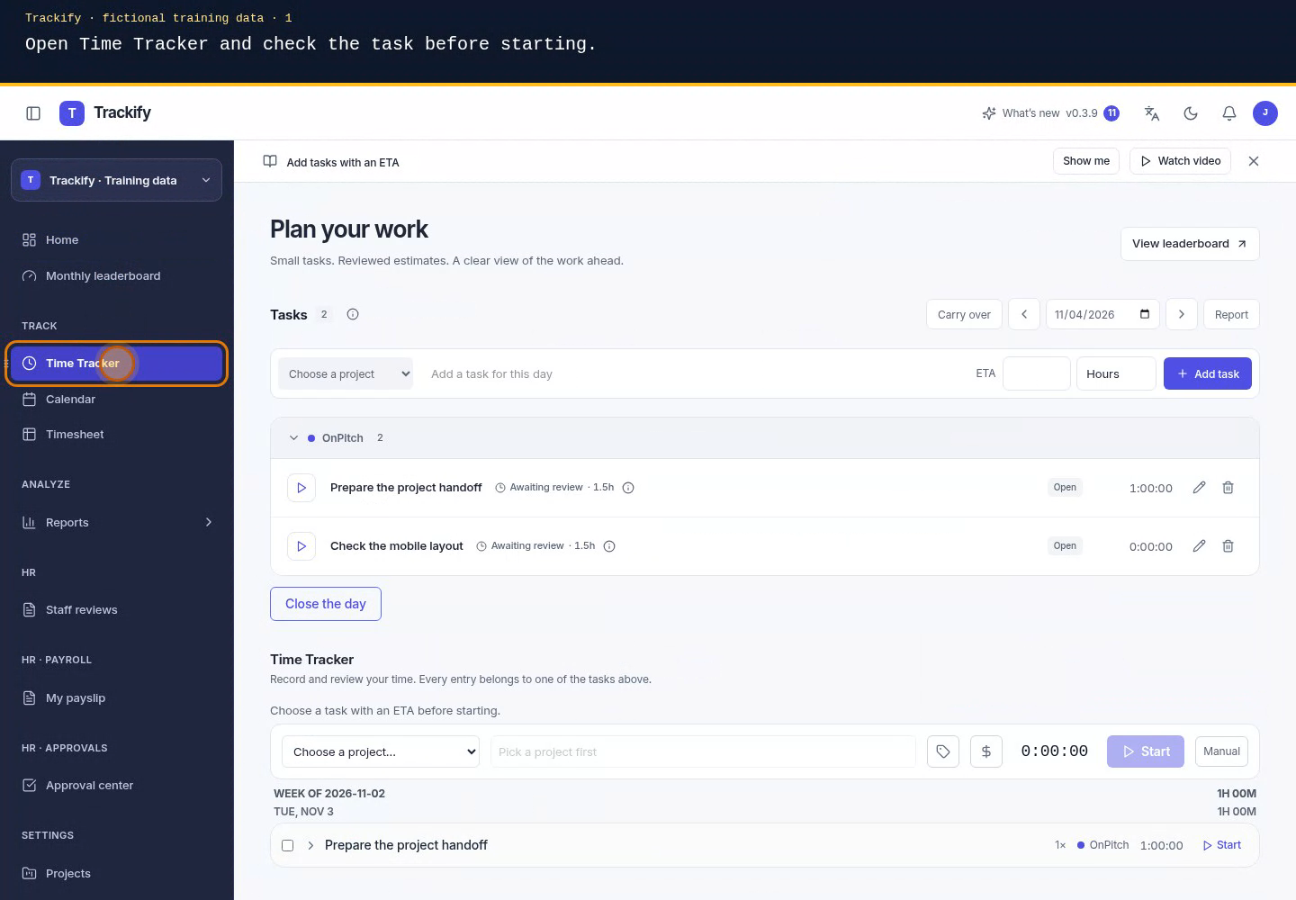
To track, the task needs a submitted ETA. A pending or approved ETA is fine; if a lead requested changes, send a new ETA first. A task marked Done must be reopened before you track more time on it.
Add or correct time manually
- Click Manual next to Start. Enter the date and the start and end times (or duration), then click Add. Timer switches back.
- To correct an entry, open it with Edit; you can also Split it in two, Duplicate it or Start this entry again.
- Select several entries to Mark billable or Mark non-billable together.
Billable is inherited: an entry’s own setting wins, then the task’s, then the project’s, then the workspace default. If your workspace restricts it, members see “Billable is admin-only”.
Weekly timesheet
Timesheet is a week-at-a-glance grid for people who prefer to fill in hours at the end of the day or week.
- Open Timesheet and move with Previous week / Next week.
- Click Add row and choose a task with an ETA, then type hours into each day’s cell.
- Copy last week brings over last week’s rows; Copy item duplicates one row.
- If your workspace uses approvals, click Submit for approval for the week. Withdraw works while it is still pending. Once approved, that week’s entries are locked.
Calendar
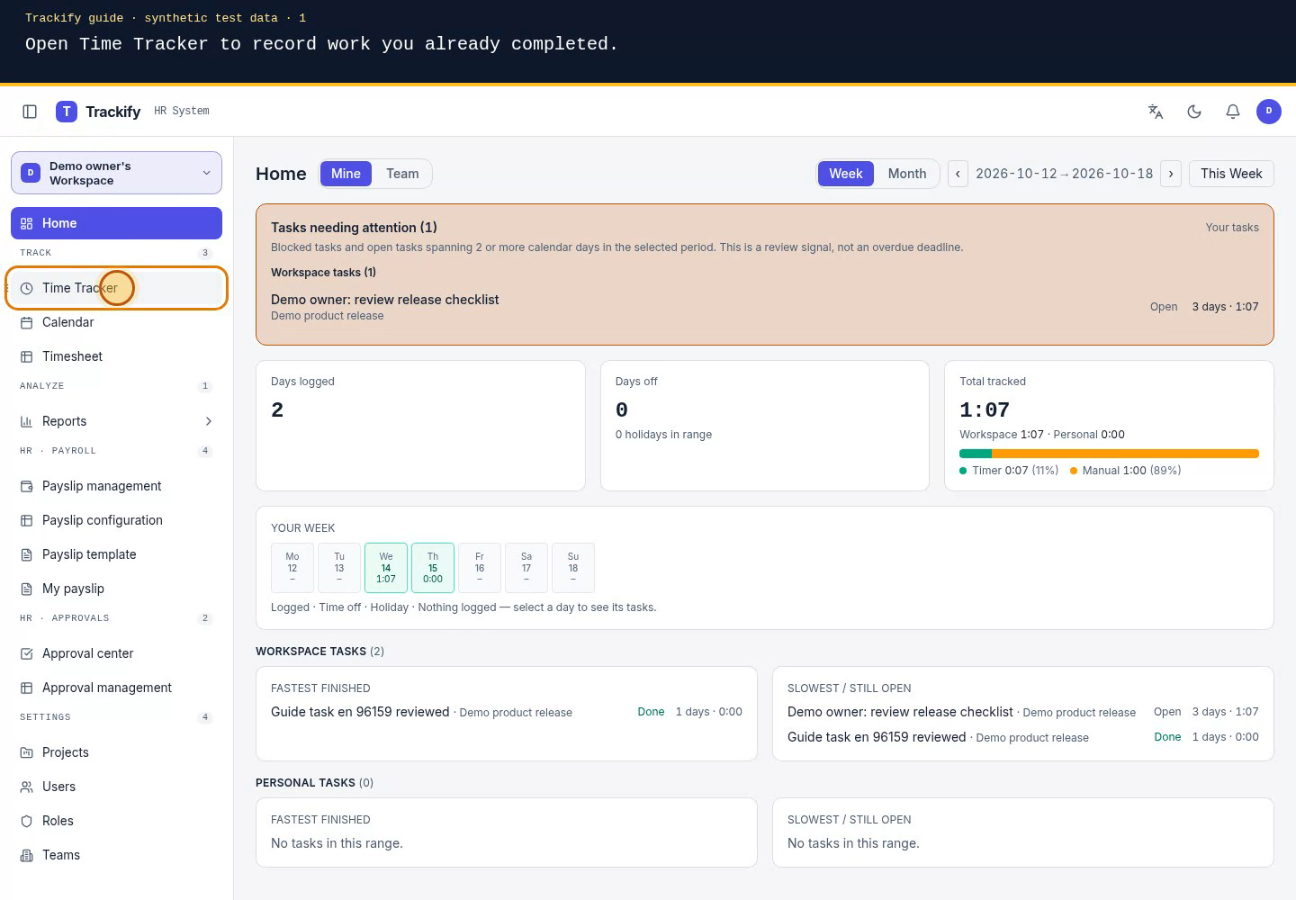
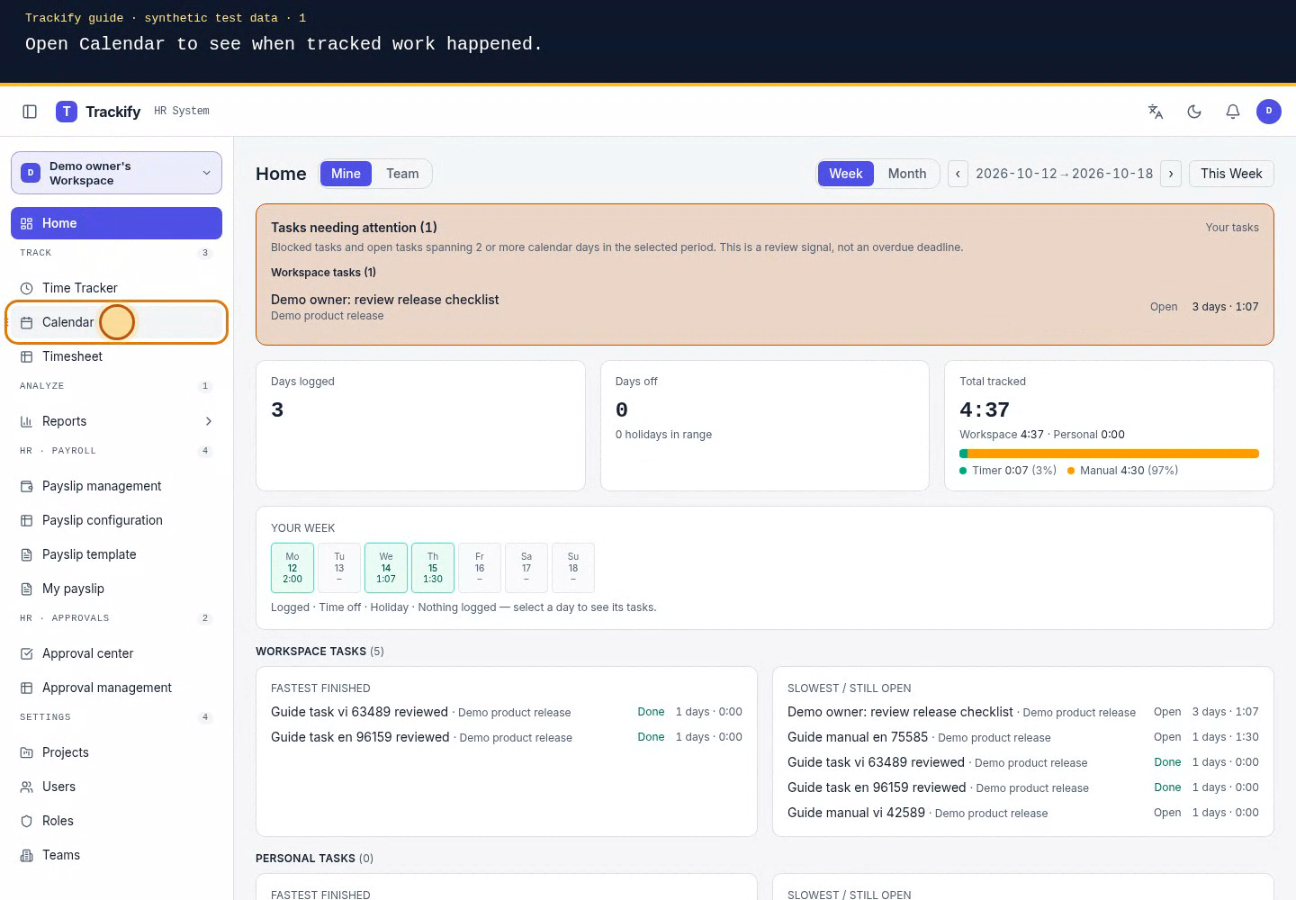
Calendar shows approved leave, public holidays and your available leave balance, with a filter for other users where you are allowed to see them. It is for seeing who is away; time is added in Time Tracker or Timesheet.
Protection against forgotten timers
A timer left running over lunch or overnight is the classic time-tracking error. In the browser, Trackify can watch for that:
- On the tracker, find Tracking device protection and click Enable idle detection. Your browser asks for permission (supported in Chromium-based browsers).
- After 5 minutes idle, or when the screen locks, you get a 60-second warning: Keep tracking continues.
- If nobody answers, the timer stops at the moment you went idle, so the idle time is not counted.
- When you come back you see Welcome back — review your tracked time with a link to review entries.
Frequently asked questions
Why can’t I start the timer?
Pick a task that has a submitted ETA. If a lead requested changes to your ETA, send a new one first; if the task is Done, reopen it.
Can I track time without a task?
No. Every entry belongs to a task so reports, estimates and the leaderboard stay meaningful. Create a small task in a few seconds from the timer’s task box.
Why is my ETA rejected?
ETAs must be above zero and under 8 hours. Split long work into several tasks — smaller tasks are also easier to estimate accurately.
Try it with your team
Trackify is free for up to 5 users, with no time limit and no card required.