Payroll and payslips
Trackify’s payroll produces monthly payslips — including Vietnamese social insurance and personal income tax — and lets each employee agree to or dispute theirs. Pay data is the most sensitive thing in the product, so it is built Owner-only and every employee sees only their own payslip.
For: MemberOwnerAdmin
Who can see what
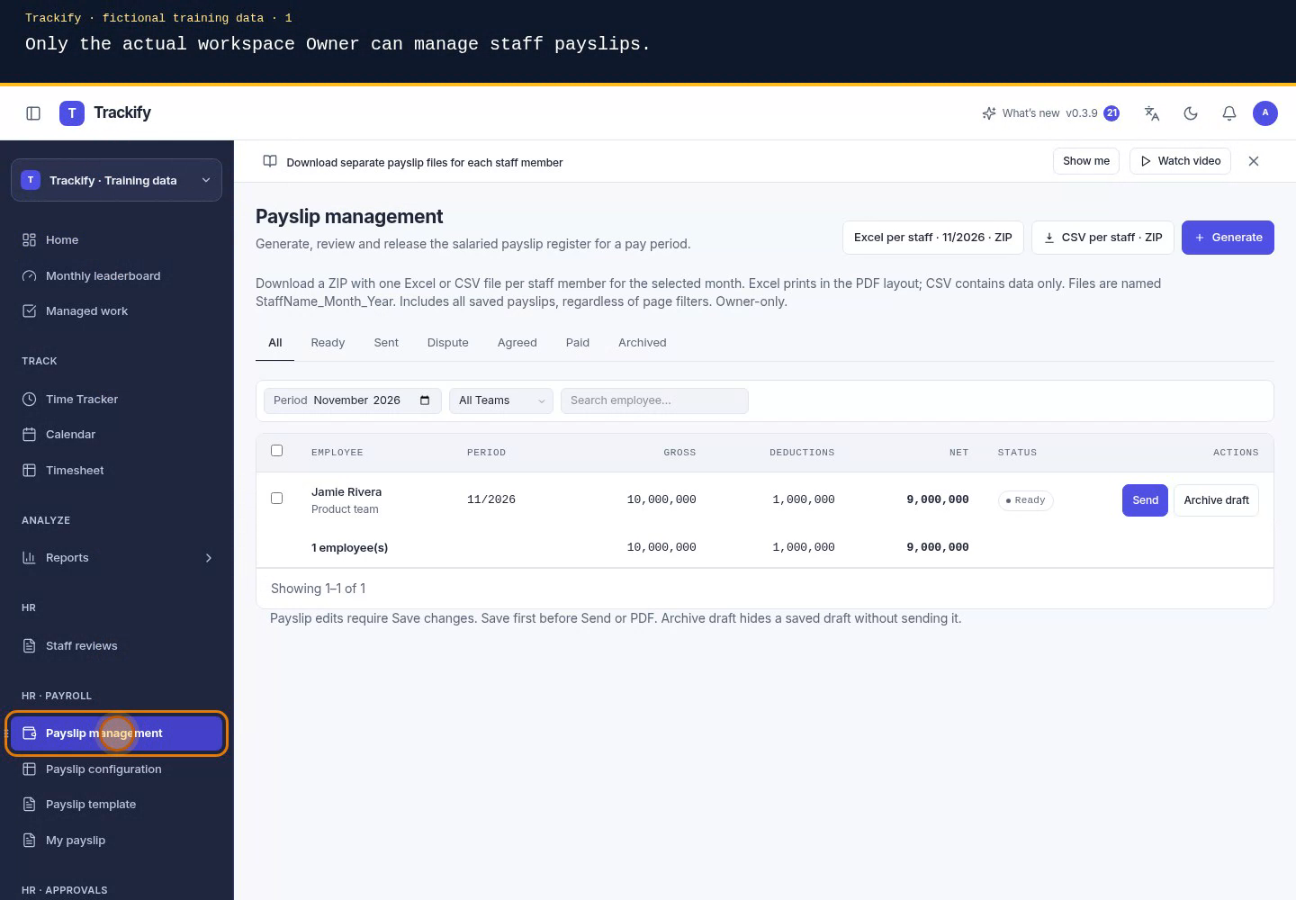
- Only the workspace Owner manages payroll: compensation, payslips, sending, exports and templates.
- Admins, team leads, project managers and custom roles get no access to anyone else’s pay — whatever the permission matrix says.
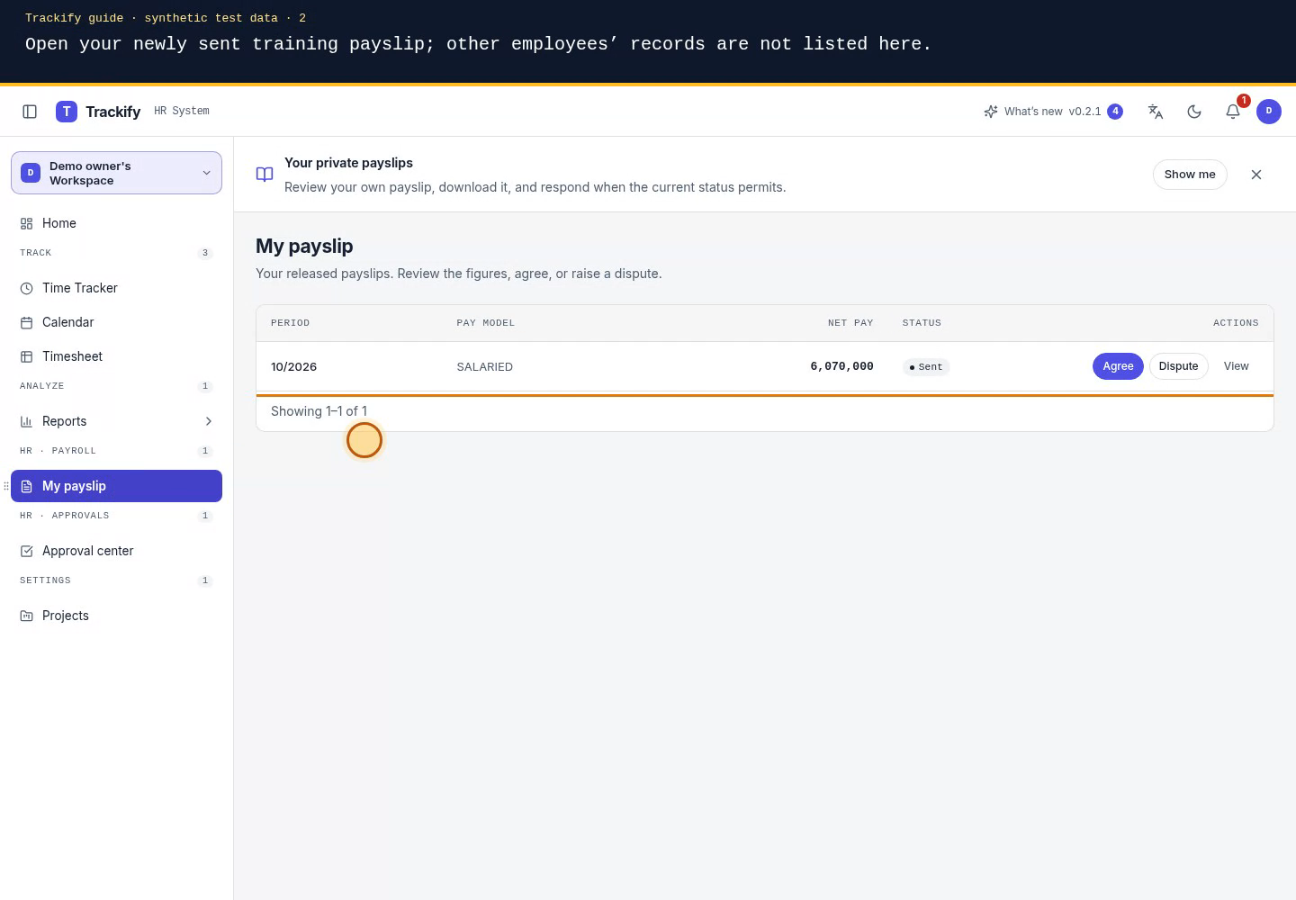
- Every member sees only their own payslips under My payslip, and only once they have been sent.
To turn payroll on, the Owner or an Admin ticks the payslip entries under Workspace management → Modules and saves. The screens appear under HR · PAYROLL.
1. Set up compensation
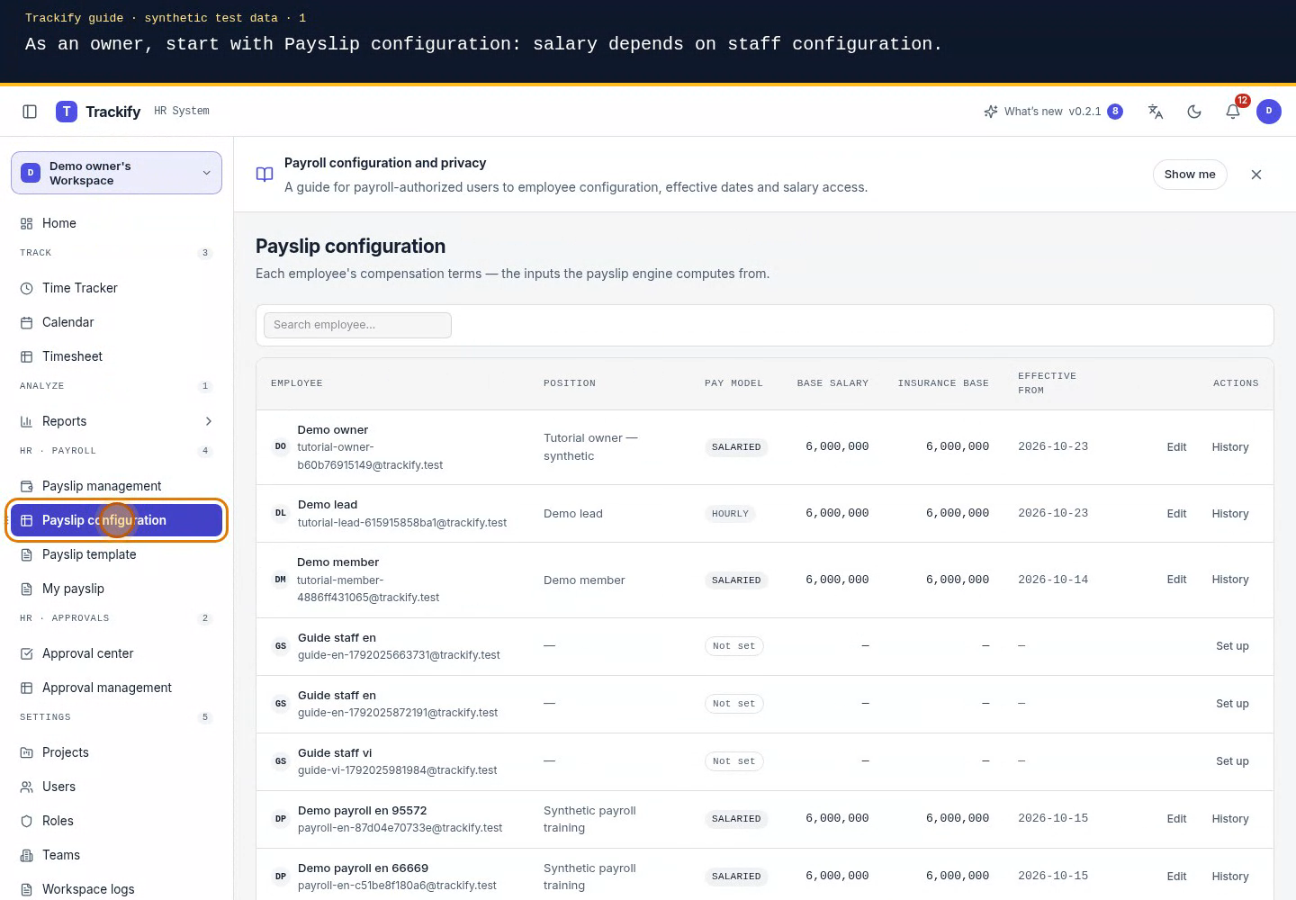
- Open Payslip configuration and click Set up next to an employee.
- Choose the pay model: Salaried (Vietnam) or Hourly (hours × rate).
- Enter the base salary (or hourly rate), the insurance base, allowances (phone, fuel, uniform, lunch), any fixed monthly bonus, the number of dependants, tax code and bank details.
- Save with Apply Immediately or Apply from a date. Each save is a new version; History shows earlier ones.
Statutory figures — insurance percentages, personal and dependant deductions, the lunch exemption cap and the PIT brackets — come from a versioned rates table preloaded with Vietnam’s current values, never from fixed numbers inside the formulas. Each payslip keeps a copy of the rates it used, so a later change never rewrites an old payslip. If your company needs different rates, contact us.
2. Generate and check payslips
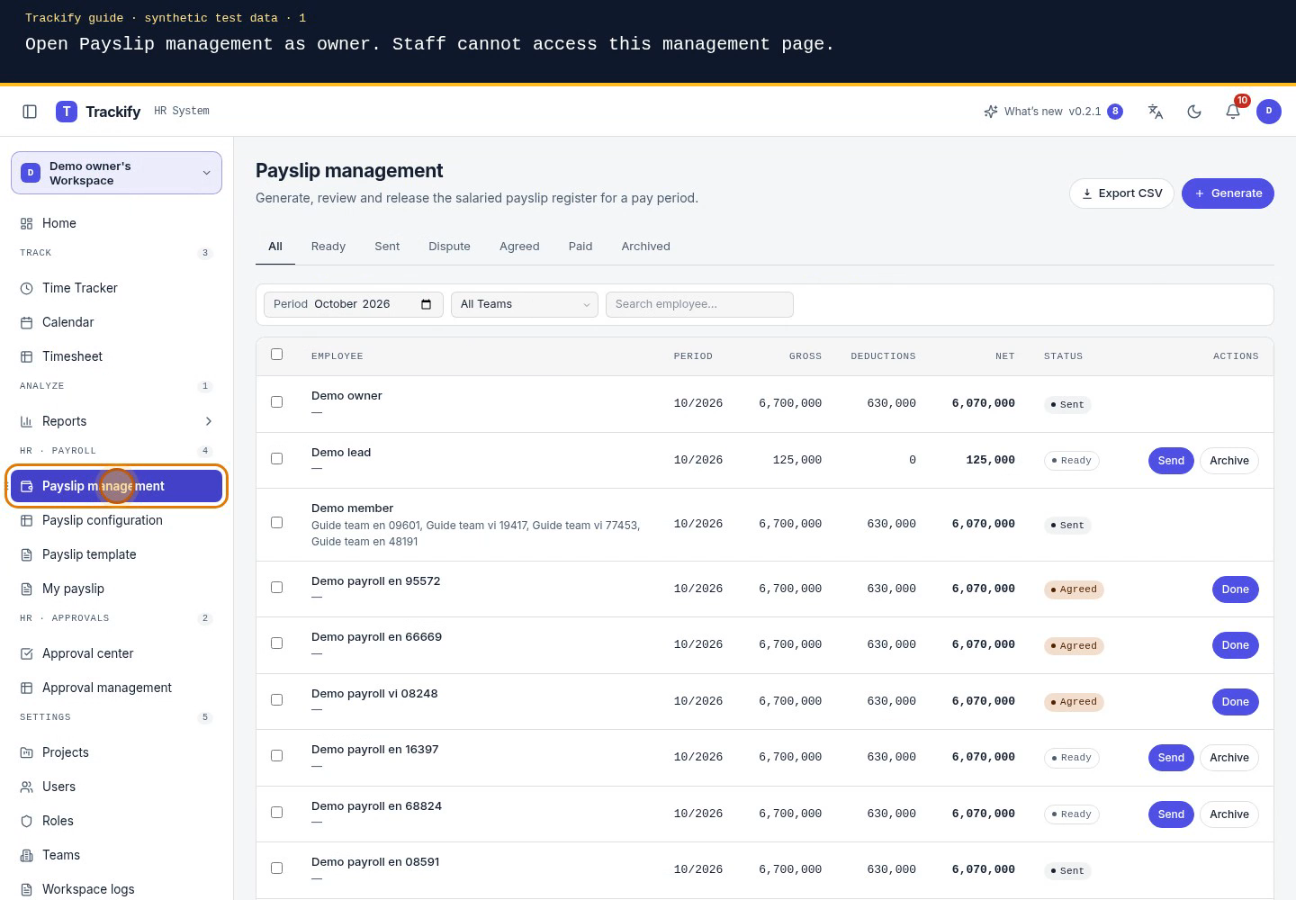
- Open Payslip management, choose the period (a month, not in the future) and optionally a department.
- Click Generate. Trackify creates a payslip for each active member with compensation, using attendance and approved leave for the month. Re-generating only replaces payslips still Ready.
- Open a payslip to adjust attendance, leave, advances or bonuses, or add one-off pay lines (taxable or not), then Save changes. Every change is kept in Revision history.
3. Send, agree, dispute, pay
| Status | Meaning | Next step |
|---|---|---|
| Ready | Draft, editable | Send (or Archive draft) |
| Sent | The employee can see it | Employee clicks Agree or Dispute with a reason |
| Dispute | Employee disagrees | Owner corrects it and clicks Resend |
| Agreed | Employee confirmed | Owner clicks Done after paying |
| Paid | Final | — |
You can send or close several payslips at once. Email payslip works once a payslip has been sent. Employees are notified in the app at each step.
PDF, Excel and templates
- Download PDF in Vietnamese or English for any payslip.
- Excel per staff · ZIP — one Excel file per employee laid out like the payslip; CSV per staff · ZIP for spreadsheets.
- Payslip template — separate Vietnamese and English templates with version history (Revert, Preview as PDF) and the company details printed on the header. Calculated figures cannot be edited in a template, and a broken template falls back to the last working version.
For employees: My payslip
- Open My payslip under HR · PAYROLL.
- Read the payslip in Vietnamese or English, or Download PDF.
- Click Agree if it is right, or Dispute and explain what is wrong. The Owner fixes it and resends.
Try it with your team
Trackify is free for up to 5 users, with no time limit and no card required.