Time off: requests, balances and holidays
Trackify counts leave in working days, shows your balance before and after a request, and sends it to the right lead. Admins set leave types, carry-over and public holidays once.
For: MemberManagerAdmin
Request time off
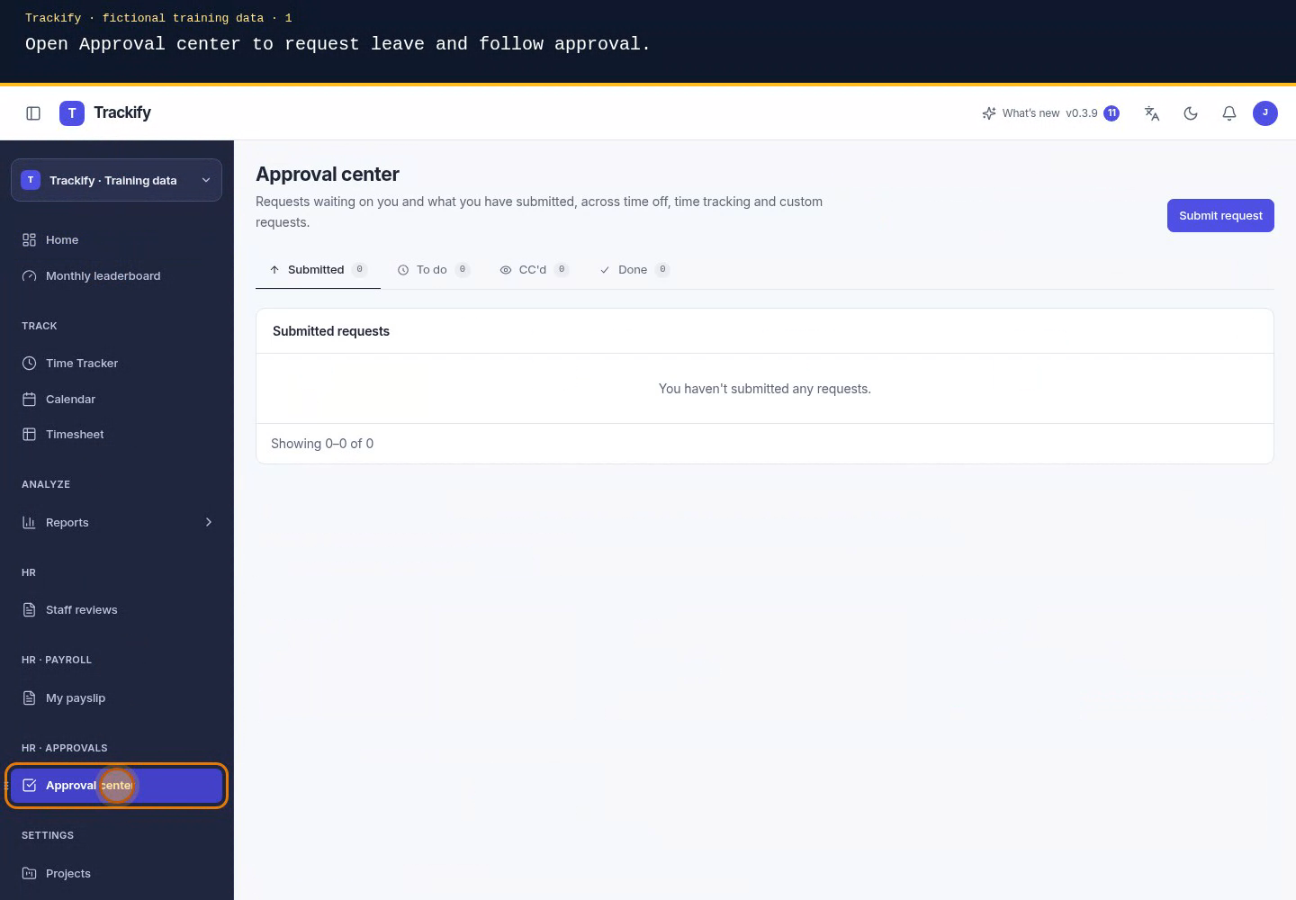
- Open Approval center and click Submit request → Time off request (or Request time off on the Time Off page, or click a start and then an end date on its calendar).
- Fill in Start and End, pick a Leave type, and choose Full day or Half day (0.5) under Amount per day.
- Write a Reason — it is required, and only you, the approvers and admins see it.
- Check the preview: Counts as, Balance before, Balance after and any Overlap in department. Then click Request.
How days are counted
- Only working days count: Monday to Friday, minus the workspace’s public holidays. A range with no working days is refused.
- The number of days is fixed when you submit; a holiday added later does not rewrite an approved request.
- Half days: up to 1 day per date per leave type in total, so the other half of a day is a second 0.5 request.
- Hour-based leave types use times between 09:00 and 17:00, where 8 hours equal one day.
- A request larger than your balance is refused unless the leave type allows a negative balance or is unlimited — use Unpaid Leave for the rest.
Cancelling and approval
You can cancel a pending request, or your own approved one; Admins can cancel anyone’s. Cancelling approved leave returns the days to the balance they came from (days from an expired carry-over are forfeited). Leave is approved by your team lead, or by an Admin when the team has no lead. Notifications are in the app.
Setting up leave types and holidays (admins)
- Open Approval management → Time-off configuration.
- Click Seed Defaults for a ready-made start: Annual Leave (12 days a year; half of the unused days carry over, rounded down, expiring on 30 June) and Unpaid Leave (may go negative), plus Vietnam’s public holidays.
- Use Add Leave Type for your own types. Carry-over can be all, half, capped or none, with rounding and an expiry date; days are taken from the soonest-expiring balance first.
- Under Holiday, add dates per year, or Clone last year’s list and adjust it.
Who can see your leave
The Time Off page has Calendar, Requests, Department, Usage, Policies and Holidays tabs. The Department view shows approved leave only — name, dates and leave type. Reasons and balances are never shown to colleagues, and pending requests stay private.
Try it with your team
Trackify is free for up to 5 users, with no time limit and no card required.